> ## Documentation Index
> Fetch the complete documentation index at: https://explore.airia.com/llms.txt
> Use this file to discover all available pages before exploring further.
# Agent Development Through Natural Language
# Agent Development Through Natural Language
> Use natural language to go from idea → working agent → deployed experience in minutes.
Airia’s **Build Agents with AI** capability lets you describe what you want in plain language while an AI-powered builder plans, assembles, and iterates your agent directly in **Agent Studio**.
At a high level, the flow looks like this:
1. **Describe & Plan** – Tell the AI what you’re trying to achieve in plain language.
2. **Build & Iterate** – Watch the AI assemble the workflow on the visual canvas and refine it with you.
3. **Test & Deploy** – Try it, fix it, and ship it—using the same AI to improve what you already have.
***
## How it Works
### 1. Describe & Plan
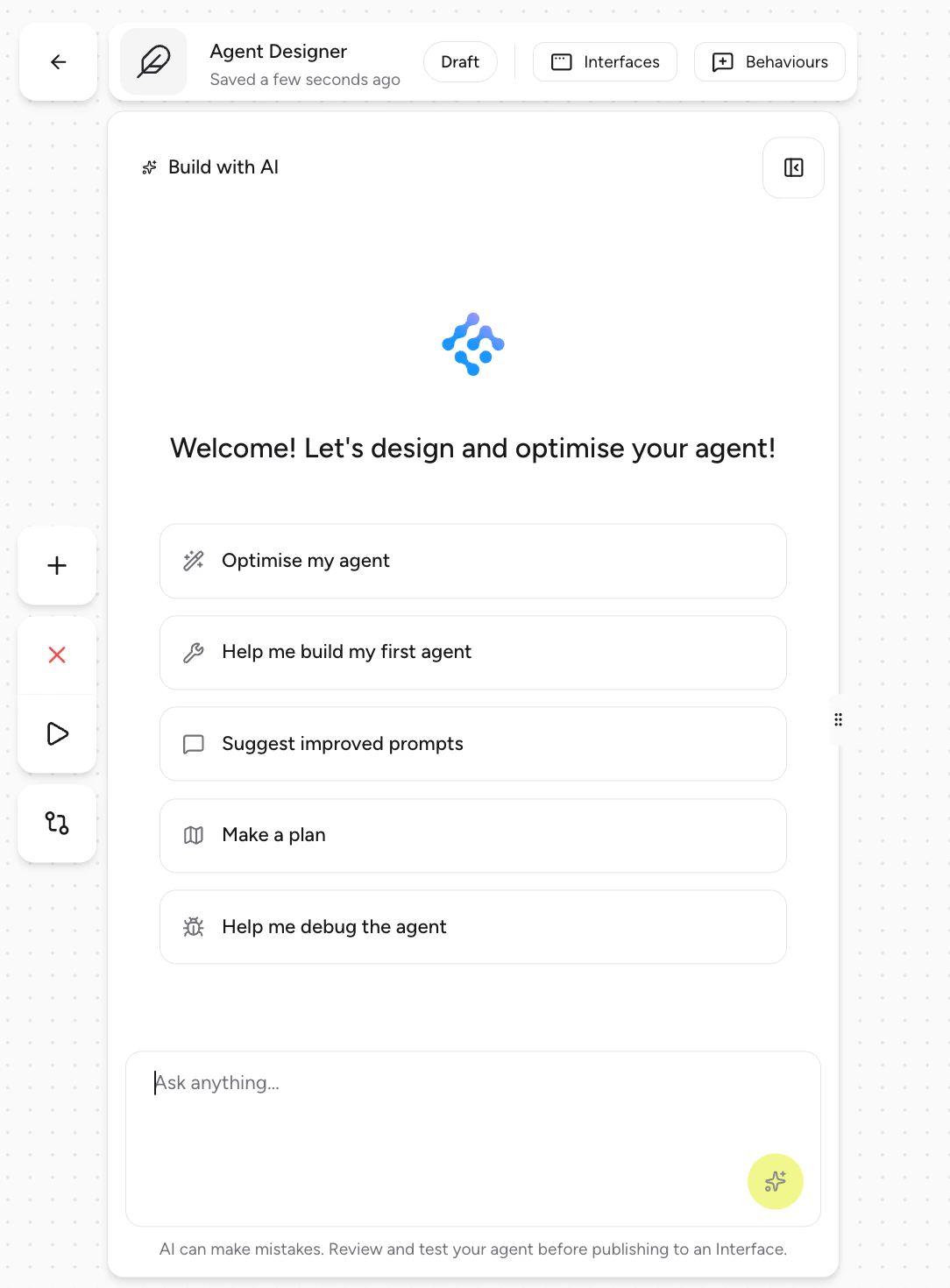 Start by describing your use case in natural language:
* Your **goal** (e.g., “Qualify inbound leads and create tickets in Jira.”)
* Any **systems** it should connect to (e.g., Jira, Slack, your internal APIs)
* Relevant **constraints** (e.g., handoff rules, approval steps, routing logic)
The Airia Agent will:
* Ask clarifying questions when needed
* Provide **feedback** on your idea (feasibility, gaps, edge cases)
* Generate a **structured plan** for the agent workflow tailored to your use case
Example prompts:
* “I want an agent that triages customer support requests and routes them by priority.”
* “Help me design an agent that collects product feedback and creates Jira tickets.”
***
### 2. Build & Iterate
Start by describing your use case in natural language:
* Your **goal** (e.g., “Qualify inbound leads and create tickets in Jira.”)
* Any **systems** it should connect to (e.g., Jira, Slack, your internal APIs)
* Relevant **constraints** (e.g., handoff rules, approval steps, routing logic)
The Airia Agent will:
* Ask clarifying questions when needed
* Provide **feedback** on your idea (feasibility, gaps, edge cases)
* Generate a **structured plan** for the agent workflow tailored to your use case
Example prompts:
* “I want an agent that triages customer support requests and routes them by priority.”
* “Help me design an agent that collects product feedback and creates Jira tickets.”
***
### 2. Build & Iterate
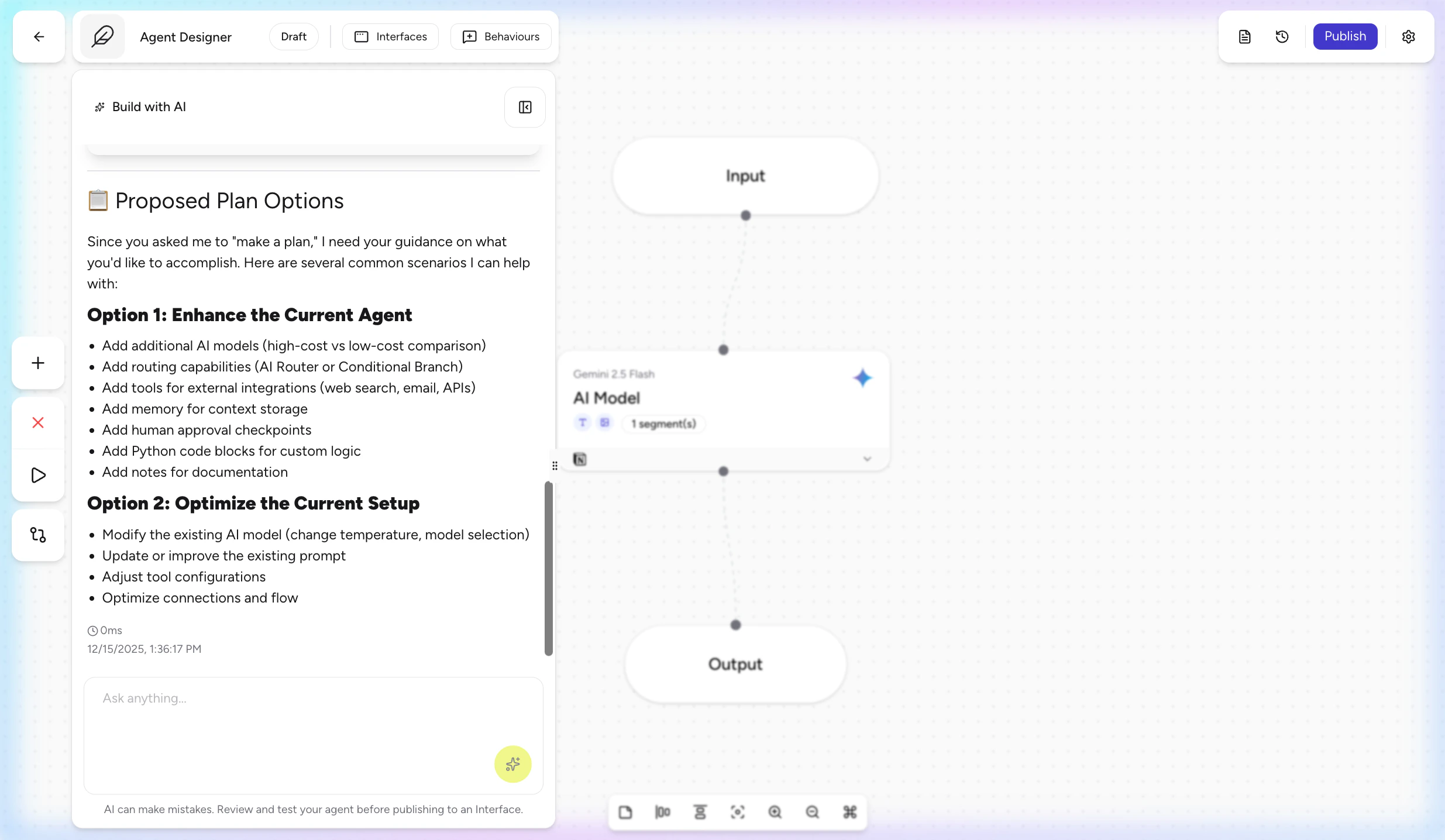 Once you approve (or adjust) the plan, the Airia Agent:
* Autonomously creates and configures steps on the **visual canvas** in real time
* Adds **AI model blocks**, **tool actions**, **routing logic**, and **memory**
* Can incorporate **Python steps** to support more advanced behaviors
Typical capabilities it can add for you:
* AI model integration (OpenAI / Anthropic models preconfigured for your project)
* Tool actions (e.g., Jira, Slack, HTTP calls, internal APIs)
* Branching and routing logic
* Custom Python steps
* Memory and context configuration
You can then iterate using the same natural language chat:
* “Add a fallback branch if Jira is unavailable.”
* “Log every error into this data source.”
* “Split high-priority issues into a separate path.”
> ℹ️ **Note**\
> While the **Build with AI** chat is building or editing your workflow, the canvas is temporarily locked for manual edits to avoid conflicting changes.
***
### 3. Test & Deploy
Once the agent is built:
1. **Test** the agent directly from Agent Studio using your own example inputs.
2. **Ask the AI to review** and suggest improvements:
* “Suggest areas of improvement for this agent design.”
* “How can I improve my existing prompts for better response quality?”
3. **Deploy** the agent once you’re satisfied with how it behaves.
You can also use the Airia Agent to **improve existing agents**:
* Review routing and error handling
* Suggest prompt improvements
* Propose additional steps or guardrails
* Troubleshoot failed executions and offer fixes
***
## Why This Matters for Enterprise Teams
Enterprise teams still struggle to turn business goals into reliable AI agents:
* Business objectives are **hard to translate** into agent workflows.
* Many agents end up being **poorly structured** and difficult to maintain.
* Teams depend heavily on **specialized AI engineers** for even small changes.
* Non-technical users are blocked or forced to work through long handoff cycles.
Airia’s natural-language agent development is designed to solve these problems by:
* **Removing the steep learning curve** of new AI platforms
* **Automatically structuring reliable workflows** that follow Airia best practices
* **Reducing dependency on specialized AI developers** for day-to-day work
* **Empowering business users** to create and adjust agents without deep technical expertise
***
## Availability & Access
### Feature Name
* Tenant setting: **Build Agents with AI**
* In Agent Studio: **Build with AI** chat
### Current Access Model
* The feature is **disabled by default** at the tenant level.
* Only the following roles can **enable or disable** the tenant setting:
* **Platform Admin**
* **Admin**
* Once enabled, **any user who can access Agent Studio** can use **Build with AI** in draft mode (subject to their existing Agent Studio permissions).
Once you approve (or adjust) the plan, the Airia Agent:
* Autonomously creates and configures steps on the **visual canvas** in real time
* Adds **AI model blocks**, **tool actions**, **routing logic**, and **memory**
* Can incorporate **Python steps** to support more advanced behaviors
Typical capabilities it can add for you:
* AI model integration (OpenAI / Anthropic models preconfigured for your project)
* Tool actions (e.g., Jira, Slack, HTTP calls, internal APIs)
* Branching and routing logic
* Custom Python steps
* Memory and context configuration
You can then iterate using the same natural language chat:
* “Add a fallback branch if Jira is unavailable.”
* “Log every error into this data source.”
* “Split high-priority issues into a separate path.”
> ℹ️ **Note**\
> While the **Build with AI** chat is building or editing your workflow, the canvas is temporarily locked for manual edits to avoid conflicting changes.
***
### 3. Test & Deploy
Once the agent is built:
1. **Test** the agent directly from Agent Studio using your own example inputs.
2. **Ask the AI to review** and suggest improvements:
* “Suggest areas of improvement for this agent design.”
* “How can I improve my existing prompts for better response quality?”
3. **Deploy** the agent once you’re satisfied with how it behaves.
You can also use the Airia Agent to **improve existing agents**:
* Review routing and error handling
* Suggest prompt improvements
* Propose additional steps or guardrails
* Troubleshoot failed executions and offer fixes
***
## Why This Matters for Enterprise Teams
Enterprise teams still struggle to turn business goals into reliable AI agents:
* Business objectives are **hard to translate** into agent workflows.
* Many agents end up being **poorly structured** and difficult to maintain.
* Teams depend heavily on **specialized AI engineers** for even small changes.
* Non-technical users are blocked or forced to work through long handoff cycles.
Airia’s natural-language agent development is designed to solve these problems by:
* **Removing the steep learning curve** of new AI platforms
* **Automatically structuring reliable workflows** that follow Airia best practices
* **Reducing dependency on specialized AI developers** for day-to-day work
* **Empowering business users** to create and adjust agents without deep technical expertise
***
## Availability & Access
### Feature Name
* Tenant setting: **Build Agents with AI**
* In Agent Studio: **Build with AI** chat
### Current Access Model
* The feature is **disabled by default** at the tenant level.
* Only the following roles can **enable or disable** the tenant setting:
* **Platform Admin**
* **Admin**
* Once enabled, **any user who can access Agent Studio** can use **Build with AI** in draft mode (subject to their existing Agent Studio permissions).
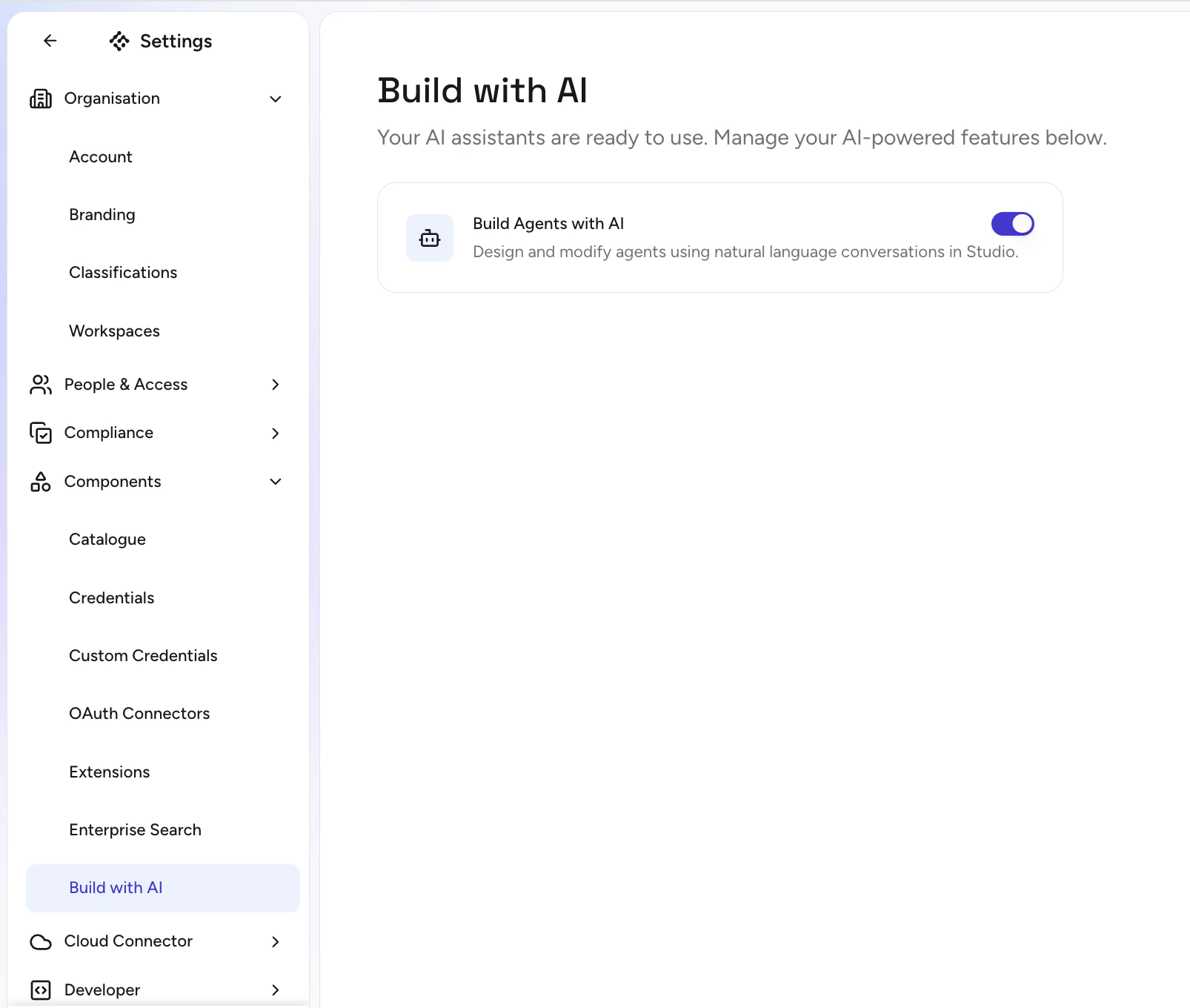 > ⚠️ **Important**
> The **Build Agents with AI** tenant toggle can only be changed by **Platform Admin** and **Admin** users.
***
## Enabling Build Agents with AI for a Tenant
> 🔐 **Permissions**
> Only **Platform Admin** and **Admin** users can enable or disable **Build Agents with AI** for the tenant.
To enable the feature:
1. Go to **Settings** in the Airia platform.
2. Open the **Build with AI** page.
3. Turn on the toggle **Build Agents with AI**.
Once enabled, this will:
* Activate the **Build and Edit with AI** chat in **Agent Studio** for your tenant.
* Allow any user who can access **Agent Studio** to use **Build with AI** in **draft mode**, subject to their existing Agent Studio permissions.
***
## Using Build Agents with AI in Agent Studio
### Draft-Only Editing
The **Build with AI** chat is available **only in draft mode**:
* ✅ You **can** build and edit **draft** versions of agents.
* ❌ You **cannot** modify **published** versions via the AI chat.
To edit an existing published agent:
1. Open the agent in Agent Studio.
2. Switch or navigate to its **draft** version.
3. Use the **Build with AI** chat from there.
***
### Starting the Build with AI Chat
1. Navigate to **Agent Studio**.
2. Open the agent you want to build or improve (draft).
3. Use the **Build with AI** chat, available from the **left navigation controls** on the canvas.
From there, you can:
* Start with a **new idea** and ask the AI to design the workflow.
* Ask questions about your **existing configuration**.
* Request **changes or improvements** to the current design.
***
### What the Airia Agent Understands
The Airia Agent is **domain- and platform-aware**. It understands:
* Your **project configuration**
* Existing **components and steps** in the agent
* Which **step types** Agent Studio currently supports
* How to map your requirements to **best-practice patterns** in Airia
This makes it a strong assistant for:
* Choosing the right step types for your use case
* Suggesting routing and branching patterns
* Proposing guardrails, validation, and error-handling flows
Example prompts:
* “Walk me through how this agent currently routes conversations.”
* “Explain what each step does and where data is stored.”
* “Recommend a better structure for this workflow given we want stricter approval.”
***
### Troubleshooting & Debugging
The Airia Agent is particularly good at **troubleshooting failing agent executions**:
* Analyze failed runs, logs, or error messages
* Suggest **concrete changes** to steps or configuration
* Propose additional logging, retries, or fallback paths
Example prompts:
* “This execution failed when calling the Jira tool. What should I change?”
* “Help me debug why this branch is never triggered.”
* “Suggest improvements to make this workflow more resilient.”
***
### Python Code Assistance
The Airia Agent can also **write and troubleshoot Python code** used in your workflows:
* Generate new Python steps based on your description
* Propose refactors or performance improvements
* Help you debug failed Python executions
Example prompts:
* “Write a Python step that normalizes user input and scores it from 1–5.”
* “My Python step is failing. Here’s the error—what should I fix?”
* “Optimize this Python logic for readability and reliability.”
***
## Billing & Model Usage
As of today:
* All executions in the **Build with AI** chat in Agent Studio are **charged to the tenant**.
* The system is optimized for:
* **Maximum quality** of the generated workflows and guidance
* **Best possible experience** for complex agent design and troubleshooting tasks
### Models Used
We currently use a combination of:
* **Sonnet 4.5**
* **GPT 5.1**
As we expand the skills of the Airia Agent, we may:
* Route specific tasks to **smaller, specialized models** optimized for those tasks
* Continue to tune the underlying models and instructions for **quality and reliability**
> 🔐 **Important**\
> Today, users **cannot change or override** the models used by **Build with AI**.\
> The feature is tightly optimized and tested with a specific setup to ensure consistent behavior across tenants.
***
## Known Behaviors & Limitations
* **Canvas locking during AI edits**
* While the **Build with AI** chat is actively building or modifying your workflow, the canvas is **temporarily blocked** from manual edits to prevent conflicts.
* **Draft-only operations**
* You can only use Build with AI on **draft** versions. To edit a published agent, open its draft version first.
* **Model configuration**
* Model selection for Build with AI is **managed by Airia** and cannot be customized per tenant at this time.
***
## Best Practices
* Start with **one clear objective** per agent (e.g., “qualify leads,” “triage tickets”).
* Let the AI propose a **first version of the workflow**, then iterate instead of over-specifying upfront.
* Use the AI not just to **build**, but also to **explain** and **review** your workflows regularly.
* When something fails, **send the error/context** to the Airia Agent and let it suggest the next steps.
If you’re unsure what to ask, a good starting point is:
> “Explain how this agent works and suggest improvements to make it more reliable for production use.”
> ⚠️ **Important**
> The **Build Agents with AI** tenant toggle can only be changed by **Platform Admin** and **Admin** users.
***
## Enabling Build Agents with AI for a Tenant
> 🔐 **Permissions**
> Only **Platform Admin** and **Admin** users can enable or disable **Build Agents with AI** for the tenant.
To enable the feature:
1. Go to **Settings** in the Airia platform.
2. Open the **Build with AI** page.
3. Turn on the toggle **Build Agents with AI**.
Once enabled, this will:
* Activate the **Build and Edit with AI** chat in **Agent Studio** for your tenant.
* Allow any user who can access **Agent Studio** to use **Build with AI** in **draft mode**, subject to their existing Agent Studio permissions.
***
## Using Build Agents with AI in Agent Studio
### Draft-Only Editing
The **Build with AI** chat is available **only in draft mode**:
* ✅ You **can** build and edit **draft** versions of agents.
* ❌ You **cannot** modify **published** versions via the AI chat.
To edit an existing published agent:
1. Open the agent in Agent Studio.
2. Switch or navigate to its **draft** version.
3. Use the **Build with AI** chat from there.
***
### Starting the Build with AI Chat
1. Navigate to **Agent Studio**.
2. Open the agent you want to build or improve (draft).
3. Use the **Build with AI** chat, available from the **left navigation controls** on the canvas.
From there, you can:
* Start with a **new idea** and ask the AI to design the workflow.
* Ask questions about your **existing configuration**.
* Request **changes or improvements** to the current design.
***
### What the Airia Agent Understands
The Airia Agent is **domain- and platform-aware**. It understands:
* Your **project configuration**
* Existing **components and steps** in the agent
* Which **step types** Agent Studio currently supports
* How to map your requirements to **best-practice patterns** in Airia
This makes it a strong assistant for:
* Choosing the right step types for your use case
* Suggesting routing and branching patterns
* Proposing guardrails, validation, and error-handling flows
Example prompts:
* “Walk me through how this agent currently routes conversations.”
* “Explain what each step does and where data is stored.”
* “Recommend a better structure for this workflow given we want stricter approval.”
***
### Troubleshooting & Debugging
The Airia Agent is particularly good at **troubleshooting failing agent executions**:
* Analyze failed runs, logs, or error messages
* Suggest **concrete changes** to steps or configuration
* Propose additional logging, retries, or fallback paths
Example prompts:
* “This execution failed when calling the Jira tool. What should I change?”
* “Help me debug why this branch is never triggered.”
* “Suggest improvements to make this workflow more resilient.”
***
### Python Code Assistance
The Airia Agent can also **write and troubleshoot Python code** used in your workflows:
* Generate new Python steps based on your description
* Propose refactors or performance improvements
* Help you debug failed Python executions
Example prompts:
* “Write a Python step that normalizes user input and scores it from 1–5.”
* “My Python step is failing. Here’s the error—what should I fix?”
* “Optimize this Python logic for readability and reliability.”
***
## Billing & Model Usage
As of today:
* All executions in the **Build with AI** chat in Agent Studio are **charged to the tenant**.
* The system is optimized for:
* **Maximum quality** of the generated workflows and guidance
* **Best possible experience** for complex agent design and troubleshooting tasks
### Models Used
We currently use a combination of:
* **Sonnet 4.5**
* **GPT 5.1**
As we expand the skills of the Airia Agent, we may:
* Route specific tasks to **smaller, specialized models** optimized for those tasks
* Continue to tune the underlying models and instructions for **quality and reliability**
> 🔐 **Important**\
> Today, users **cannot change or override** the models used by **Build with AI**.\
> The feature is tightly optimized and tested with a specific setup to ensure consistent behavior across tenants.
***
## Known Behaviors & Limitations
* **Canvas locking during AI edits**
* While the **Build with AI** chat is actively building or modifying your workflow, the canvas is **temporarily blocked** from manual edits to prevent conflicts.
* **Draft-only operations**
* You can only use Build with AI on **draft** versions. To edit a published agent, open its draft version first.
* **Model configuration**
* Model selection for Build with AI is **managed by Airia** and cannot be customized per tenant at this time.
***
## Best Practices
* Start with **one clear objective** per agent (e.g., “qualify leads,” “triage tickets”).
* Let the AI propose a **first version of the workflow**, then iterate instead of over-specifying upfront.
* Use the AI not just to **build**, but also to **explain** and **review** your workflows regularly.
* When something fails, **send the error/context** to the Airia Agent and let it suggest the next steps.
If you’re unsure what to ask, a good starting point is:
> “Explain how this agent works and suggest improvements to make it more reliable for production use.”