> ## Documentation Index
> Fetch the complete documentation index at: https://explore.airia.com/llms.txt
> Use this file to discover all available pages before exploring further.
# AWS Bedrock
# Set Up AWS Bedrock IAM Access
This guide walks you through configuring AWS IAM roles and permissions to enable Airia to access Amazon Bedrock models in your AWS account. You can choose between two authentication methods: **IAM Role ARN** (recommended for production environments) or **Access Key** (simpler setup for testing and development).
## Prerequisites
Before you begin, ensure you have:
* [ ] **AWS Account access** with administrative privileges to create IAM roles and policies
* [ ] **Bedrock models enabled** in your AWS account and region
**Model Access Note:** Most Bedrock models are enabled automatically in AWS accounts. However, for **Anthropic Claude** models, you may need to submit a one-time "use case details" form in the AWS Bedrock Console → Model Catalog to unlock access.
***
## Choose Your Authentication Method
### Option 1: IAM Role ARN (Recommended for Production)
Use this method if you want to provide Airia with IAM user credentials that can assume a specific role. This provides better security through role-based access control.
**Best for:**
* Production environments
* Organizations that want to tightly scope permissions
* Scenarios requiring role-based access control
### Option 2: Access Key (Simpler Setup)
Use this method for a straightforward setup using direct AWS access keys. This is simpler to configure but requires managing access keys directly.
**Best for:**
* Quick setup and testing
* Development environments
* Scenarios where role assumption is not required
***
## Option 1: IAM Role ARN Setup
### Step 1: Create an IAM Policy for Bedrock Access
1. Log in to the [AWS Console](https://console.aws.amazon.com) and navigate to **IAM**.
2. In the left sidebar, go to **Policies** → **Create policy**.
3. Select the **JSON** tab and paste the following policy:
```json theme={null}
{
"Version": "2012-10-17",
"Statement": [
{
"Sid": "BedrockInvokeAccess",
"Effect": "Allow",
"Action": [
"bedrock:InvokeModel",
"bedrock:InvokeModelWithResponseStream"
],
"Resource": [
"arn:aws:bedrock:*::foundation-model/*",
"arn:aws:bedrock:*:*:inference-profile/*"
]
}
]
}
```
4. Click **Next**.
5. Name the policy `AiriaBedrockAccessPolicy` (or your preferred name).
6. Add an optional description, then click **Create policy**.
This policy grants permission to invoke Bedrock models using both direct foundation model access and inference profiles. The wildcard (`*`) allows access to all models in all regions. You can restrict this to specific models or regions if needed.
***
### Step 2: Create the Execution Role
This role will have the permissions to call Bedrock models.
1. In IAM, go to **Roles** → **Create role**.
2. Under **Trusted entity type**, select **AWS account**.
3. Select **This account** (since the IAM user you'll create next will be in the same account).
4. Click **Next**.
5. On the **Add permissions** page, search for and select the `AiriaBedrockAccessPolicy` you created in Step 1.
6. Click **Next**.
7. Name the role `AiriaBedrockExecutionRole` (or your preferred name).
8. Add an optional description.
9. Click **Create role**.
10. **Important:** Copy the **Role ARN** (it will look like `arn:aws:iam::123456789012:role/AiriaBedrockExecutionRole`). You'll need this in Step 5.
***
### Step 3: Create an IAM User for Airia
This user will be used by Airia to assume the role you just created.
1. In IAM, go to **Users** → **Create user**.
2. Enter the username `AiriaBedrockUser` (or your preferred name).
3. Click **Next**.
4. Under **Set permissions**, select **Attach policies directly**.
5. Click **Create policy** (this opens a new tab/window).
6. In the policy creation window:
* Select the **JSON** tab
* Paste the following JSON, replacing `YOUR_ROLE_ARN` with the Role ARN you copied in Step 2:
```json theme={null}
{
"Version": "2012-10-17",
"Statement": [
{
"Sid": "AllowAssumeRole",
"Effect": "Allow",
"Action": "sts:AssumeRole",
"Resource": "arn:aws:iam::123456789012:role/AiriaBedrockExecutionRole"
}
]
}
```
7. Click **Next**, name the policy `AiriaAssumeRolePolicy`, and click **Create policy**.
8. Return to the user creation tab, refresh the policies list, and select `AiriaAssumeRolePolicy`.
9. Click **Next**, review your selections, and click **Create user**.
***
### Step 4: Generate Access Keys
1. Click on the `AiriaBedrockUser` you just created.
2. Go to the **Security credentials** tab.
3. Scroll to **Access keys** and click **Create access key**.
4. Select **Application running outside AWS** (or **Other**).
5. Click **Next**, add an optional description tag, and click **Create access key**.
6. **Important:** Copy both the **Access Key ID** and **Secret Access Key**. You won't be able to see the secret key again after closing this dialog.
Store these credentials securely. The secret access key cannot be retrieved later. You'll need both values to configure Airia in the next step.
***
### Step 5: Configure Airia with Role ARN
Now you'll enter these credentials into the Airia platform:
1. Log in to your Airia platform.
2. Navigate to **Models** → filter by Provider **Bedrock** → select a **Bedrock Model** (such as Claude Sonnet 4.5)
3. Click on the model to edit it, or click **Provide my own key** if creating a new credential
4. In the credential configuration dialog, select **Role ARN** as the authentication method
5. Configure the following fields:
* **Name:** Enter a descriptive name for this credential (e.g., "Bedrock Production ARN")
* **Type:** Should be set to "AWS Bedrock"
* **AWS Access Key:** Enter the Access Key ID from Step 4
* **AWS Secret Key:** Enter the Secret Access Key from Step 4
* **AWS Region:** Enter the region where your Bedrock models are enabled (e.g., `us-east-1`, `us-east-2`, `us-west-2`)
* **Account number:** Enter your AWS Account number (found in the top-right corner of your AWS Console)
* **IAM Role:** Enter the role name from Step 2 (just the role name, not the full ARN - e.g., `AiriaBedrockExecutionRole`)
* **External ID:** (Optional) Leave blank unless you configured an External ID condition in the role's trust policy
* **Scope:** Select whether this credential should be available to all projects or specific projects
6. Click **Create** to save the configuration.
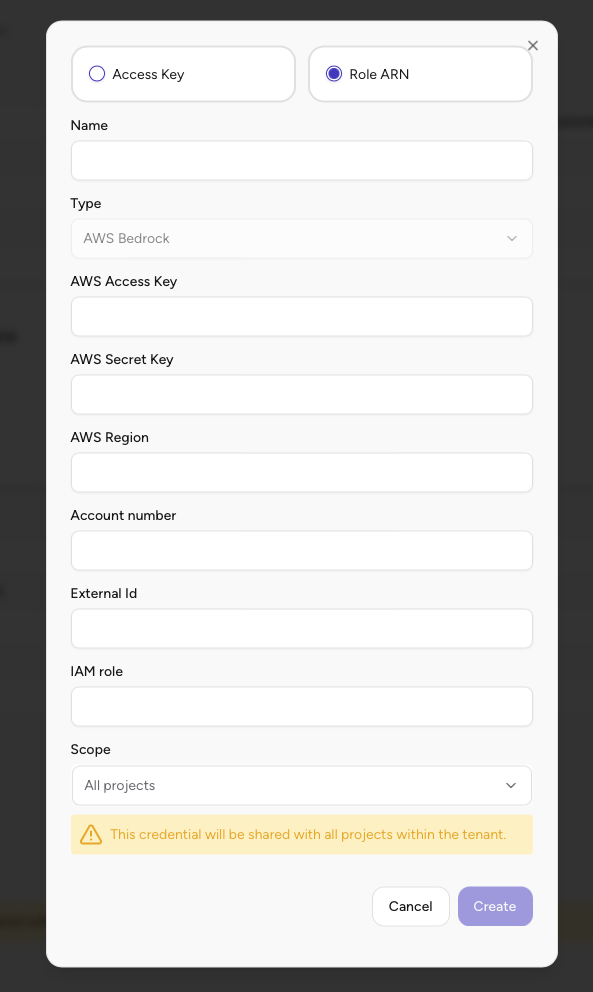 Double-check your **Access Key**, **Secret Key**, **IAM Role name**, **Account number**, and **Region** for any typographical errors. Common issues include extra spaces, incorrect region names, or missing account numbers.
***
## Option 2: Access Key Setup
This method uses direct AWS access keys without role assumption. It's simpler to set up but requires the access keys to have direct Bedrock permissions.
### Step 1: Create an IAM Policy for Bedrock Access
Follow **Option 1, Step 1** to create the `AiriaBedrockAccessPolicy`. The same IAM policy is used for both authentication methods.
***
### Step 2: Create an IAM User for Airia
Follow **Option 1, Step 3** to create an IAM user, but with this difference:
* Instead of creating a policy that allows assuming a role, **attach the `AiriaBedrockAccessPolicy` directly** to the user
* When setting permissions, search for and select the `AiriaBedrockAccessPolicy` you created in Step 1
* You do **not** need to create the `AiriaAssumeRolePolicy` or configure role assumption
***
### Step 3: Generate Access Keys
Follow **Option 1, Step 4** to generate access keys for the IAM user you just created.
***
### Step 4: Configure Airia with Access Key
Now you'll enter these credentials into the Airia platform:
1. Log in to your Airia platform.
2. Navigate to **Models** → filter by Provider **Bedrock** → select a **Bedrock Model** (such as Claude Sonnet 4.5)
3. Click on the model to edit it, or click **Provide my own key** if creating a new credential
4. In the credential configuration dialog, select **Access Key** as the authentication method
5. Configure the following fields:
* **Name:** Enter a descriptive name for this credential (e.g., "Bedrock Development Access Key")
* **Type:** Should be set to "AWS Bedrock"
* **AWS Access Key:** Enter the Access Key ID from Step 3
* **AWS Secret Key:** Enter the Secret Access Key from Step 3
* **AWS Region:** Enter the region where your Bedrock models are enabled (e.g., `us-east-1`, `us-east-2`, `us-west-2`)
* **Scope:** Select whether this credential should be available to all projects or specific projects
6. Click **Create** to save the configuration.
Double-check your **Access Key**, **Secret Key**, **IAM Role name**, **Account number**, and **Region** for any typographical errors. Common issues include extra spaces, incorrect region names, or missing account numbers.
***
## Option 2: Access Key Setup
This method uses direct AWS access keys without role assumption. It's simpler to set up but requires the access keys to have direct Bedrock permissions.
### Step 1: Create an IAM Policy for Bedrock Access
Follow **Option 1, Step 1** to create the `AiriaBedrockAccessPolicy`. The same IAM policy is used for both authentication methods.
***
### Step 2: Create an IAM User for Airia
Follow **Option 1, Step 3** to create an IAM user, but with this difference:
* Instead of creating a policy that allows assuming a role, **attach the `AiriaBedrockAccessPolicy` directly** to the user
* When setting permissions, search for and select the `AiriaBedrockAccessPolicy` you created in Step 1
* You do **not** need to create the `AiriaAssumeRolePolicy` or configure role assumption
***
### Step 3: Generate Access Keys
Follow **Option 1, Step 4** to generate access keys for the IAM user you just created.
***
### Step 4: Configure Airia with Access Key
Now you'll enter these credentials into the Airia platform:
1. Log in to your Airia platform.
2. Navigate to **Models** → filter by Provider **Bedrock** → select a **Bedrock Model** (such as Claude Sonnet 4.5)
3. Click on the model to edit it, or click **Provide my own key** if creating a new credential
4. In the credential configuration dialog, select **Access Key** as the authentication method
5. Configure the following fields:
* **Name:** Enter a descriptive name for this credential (e.g., "Bedrock Development Access Key")
* **Type:** Should be set to "AWS Bedrock"
* **AWS Access Key:** Enter the Access Key ID from Step 3
* **AWS Secret Key:** Enter the Secret Access Key from Step 3
* **AWS Region:** Enter the region where your Bedrock models are enabled (e.g., `us-east-1`, `us-east-2`, `us-west-2`)
* **Scope:** Select whether this credential should be available to all projects or specific projects
6. Click **Create** to save the configuration.
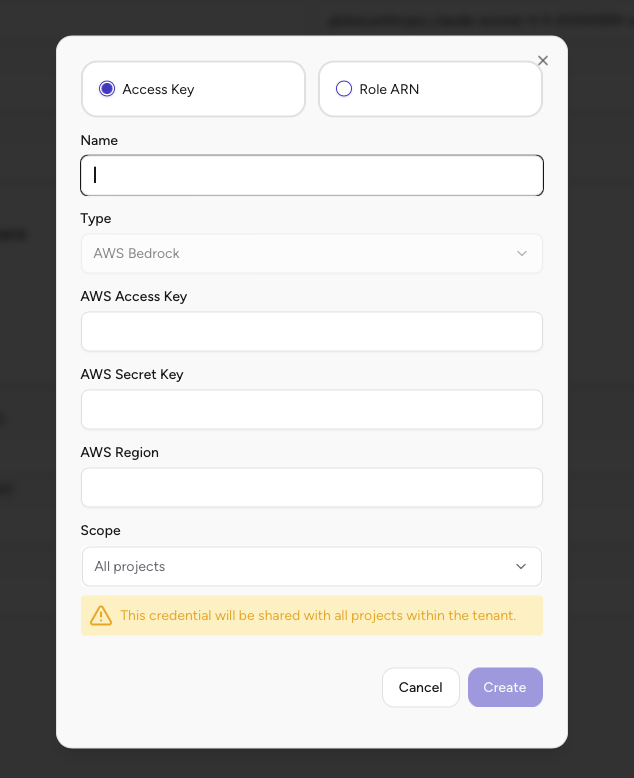 Double-check your **Access Key**, **Secret Key**, and **Region** for any typographical errors. Make sure the access keys have the `AiriaBedrockAccessPolicy` attached directly to the IAM user.
***
## Configure the Bedrock Model in Airia
After setting up your credentials (using either Option 1 or Option 2), you need to configure the Bedrock model to use them:
1. In Airia, navigate to **Models** → filter by Provider **Bedrock**
2. Select the Bedrock model you want to configure (e.g., "Claude Sonnet 4.5 ARN")
3. Click to edit the model configuration
4. In the **Edit Model** dialog:
* **Display Name:** Verify or update the model display name
* **Model ID:** Verify the model ID (e.g., `global.anthropic.claude-sonnet-4-5-20250929-v1:0`)
* **Model Provider:** Should be set to "Bedrock"
* **Credentials:** Select "I have my own key"
* **Select credential:** Choose the credential you created in the previous step (e.g., "Bedrock ARN" or "Bedrock Development Access Key")
* **Model Endpoint:** Verify the endpoint URL (e.g., `https://bedrock.us-east-2.amazonaws.com`)
* Configure pricing, model input, and other settings as needed
5. Click **Submit** to save the model configuration
Double-check your **Access Key**, **Secret Key**, and **Region** for any typographical errors. Make sure the access keys have the `AiriaBedrockAccessPolicy` attached directly to the IAM user.
***
## Configure the Bedrock Model in Airia
After setting up your credentials (using either Option 1 or Option 2), you need to configure the Bedrock model to use them:
1. In Airia, navigate to **Models** → filter by Provider **Bedrock**
2. Select the Bedrock model you want to configure (e.g., "Claude Sonnet 4.5 ARN")
3. Click to edit the model configuration
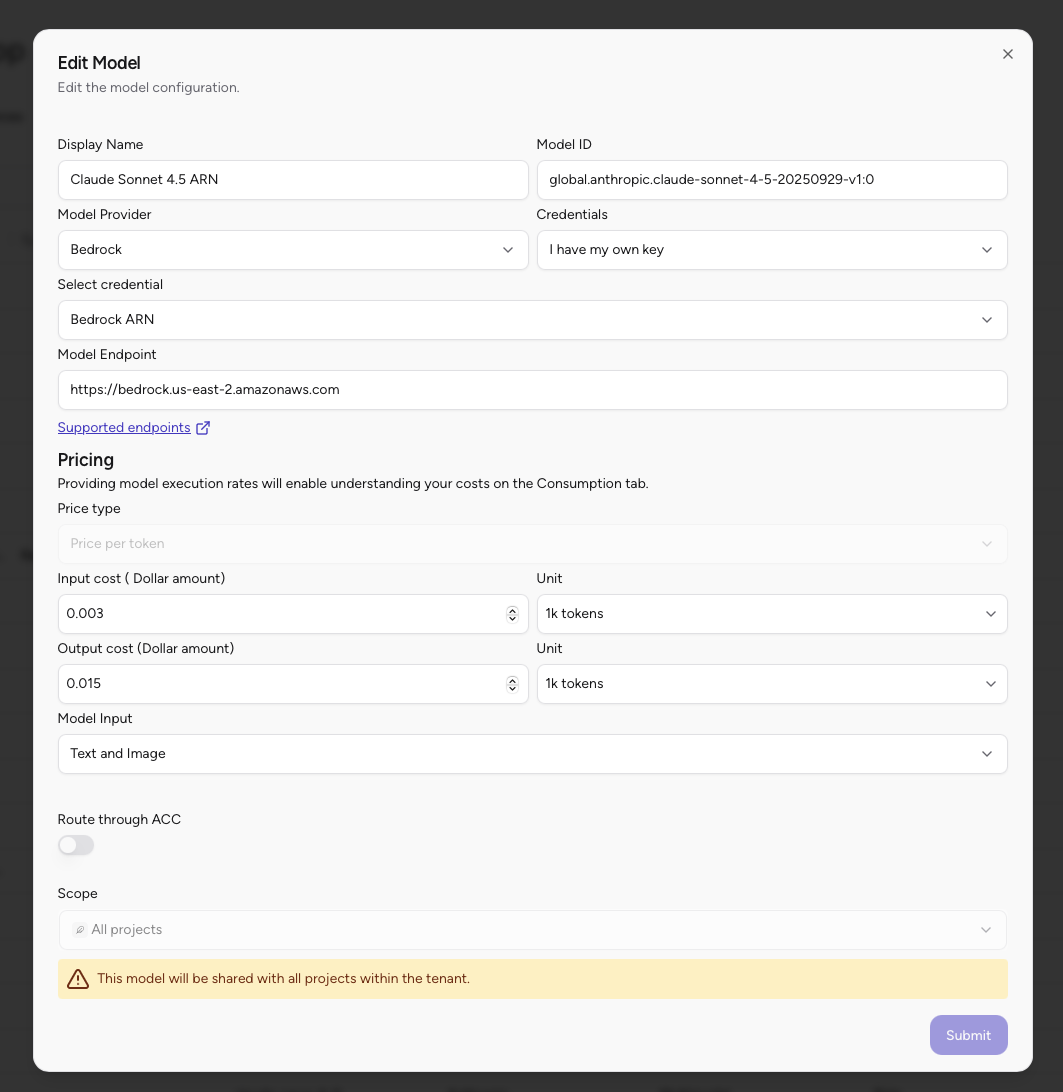
4. In the **Edit Model** dialog:
* **Display Name:** Verify or update the model display name
* **Model ID:** Verify the model ID (e.g., `global.anthropic.claude-sonnet-4-5-20250929-v1:0`)
* **Model Provider:** Should be set to "Bedrock"
* **Credentials:** Select "I have my own key"
* **Select credential:** Choose the credential you created in the previous step (e.g., "Bedrock ARN" or "Bedrock Development Access Key")
* **Model Endpoint:** Verify the endpoint URL (e.g., `https://bedrock.us-east-2.amazonaws.com`)
* Configure pricing, model input, and other settings as needed
5. Click **Submit** to save the model configuration
 ***
## Verification
After completing the setup, verify that everything is working:
1. In Airia, test the Bedrock connection by adding a Model to your project
2. Create a test agent or workflow that uses a Bedrock model
3. Run a test query to confirm the model responds correctly.
If you encounter permission errors, double-check that:
* The IAM policy includes both `foundation-model/*` and `inference-profile/*` resources
* The role ARN is correct and matches the role you created
* The AWS region matches where your Bedrock models are enabled
* The Bedrock models you're trying to use are enabled in your AWS account
***
## Troubleshooting
### Common Issues
**Error: "User is not authorized to perform: bedrock:InvokeModel"**
* Verify the IAM policy is attached to the execution role
* Ensure the policy includes both `bedrock:InvokeModel` and `bedrock:InvokeModelWithResponseStream` actions
* Check that the resource ARNs include both `foundation-model/*` and `inference-profile/*`
**Error: "Unable to assume role"** (Role ARN method only)
* Verify the IAM user has permission to assume the role (check `AiriaAssumeRolePolicy`)
* Ensure the IAM role name and account number are correct
* Verify the role's trust policy allows the IAM user to assume it
**Error: "Model not found" or "Model access denied"**
* Confirm the Bedrock model is enabled in your AWS account and region
* For Anthropic Claude models, check if you need to complete the use case form in Bedrock Console
* Verify you're using the correct region in your Airia configuration
***
## Next Steps
After successfully configuring AWS Bedrock access:
* [Add Bedrock models to your agents](/building-and-deploying-agents/agent-basics/models)
* [Configure agent prompts](/building-and-deploying-agents/agent-basics/prompts) to use Bedrock models
* [Test your agents](/building-and-deploying-agents/agent-basics/evaluate-agent-performance) to ensure proper model integration
***
## Additional Resources
* [AWS Bedrock Documentation](https://docs.aws.amazon.com/bedrock/)
* [AWS IAM Best Practices](https://docs.aws.amazon.com/IAM/latest/UserGuide/best-practices.html)
* [AWS Bedrock Model Access](https://docs.aws.amazon.com/bedrock/latest/userguide/model-access.html)
***
Need help? [Contact Airia support](/contact-us/support) or your AWS administrator for assistance with IAM configuration.
***
## Verification
After completing the setup, verify that everything is working:
1. In Airia, test the Bedrock connection by adding a Model to your project
2. Create a test agent or workflow that uses a Bedrock model
3. Run a test query to confirm the model responds correctly.
If you encounter permission errors, double-check that:
* The IAM policy includes both `foundation-model/*` and `inference-profile/*` resources
* The role ARN is correct and matches the role you created
* The AWS region matches where your Bedrock models are enabled
* The Bedrock models you're trying to use are enabled in your AWS account
***
## Troubleshooting
### Common Issues
**Error: "User is not authorized to perform: bedrock:InvokeModel"**
* Verify the IAM policy is attached to the execution role
* Ensure the policy includes both `bedrock:InvokeModel` and `bedrock:InvokeModelWithResponseStream` actions
* Check that the resource ARNs include both `foundation-model/*` and `inference-profile/*`
**Error: "Unable to assume role"** (Role ARN method only)
* Verify the IAM user has permission to assume the role (check `AiriaAssumeRolePolicy`)
* Ensure the IAM role name and account number are correct
* Verify the role's trust policy allows the IAM user to assume it
**Error: "Model not found" or "Model access denied"**
* Confirm the Bedrock model is enabled in your AWS account and region
* For Anthropic Claude models, check if you need to complete the use case form in Bedrock Console
* Verify you're using the correct region in your Airia configuration
***
## Next Steps
After successfully configuring AWS Bedrock access:
* [Add Bedrock models to your agents](/building-and-deploying-agents/agent-basics/models)
* [Configure agent prompts](/building-and-deploying-agents/agent-basics/prompts) to use Bedrock models
* [Test your agents](/building-and-deploying-agents/agent-basics/evaluate-agent-performance) to ensure proper model integration
***
## Additional Resources
* [AWS Bedrock Documentation](https://docs.aws.amazon.com/bedrock/)
* [AWS IAM Best Practices](https://docs.aws.amazon.com/IAM/latest/UserGuide/best-practices.html)
* [AWS Bedrock Model Access](https://docs.aws.amazon.com/bedrock/latest/userguide/model-access.html)
***
Need help? [Contact Airia support](/contact-us/support) or your AWS administrator for assistance with IAM configuration.