> ## Documentation Index
> Fetch the complete documentation index at: https://explore.airia.com/llms.txt
> Use this file to discover all available pages before exploring further.
# Using Database tools in an Agent
Configure agents to query and interact with your database using SQL queries and metadata retrieval.
## Prerequisites
* Database tools already configured for your database type
* Project with agent building permissions
* Database server accessible via public IP
> 💡 **Setup Required:** Ensure you've configured your database tools first by following the setup guide for your specific database type.
## Supported Database Types
* **MySQL** - Standard metadata + query pattern
* **PostgreSQL** - Standard metadata + query pattern
* **MS SQL Server** - Standard metadata + query pattern
* **Snowflake** - Standard metadata + query pattern
* **MongoDB** - Standard pattern with Find + Aggregate tools
* **Databricks** - Simplified query-only pattern
## Agent Patterns
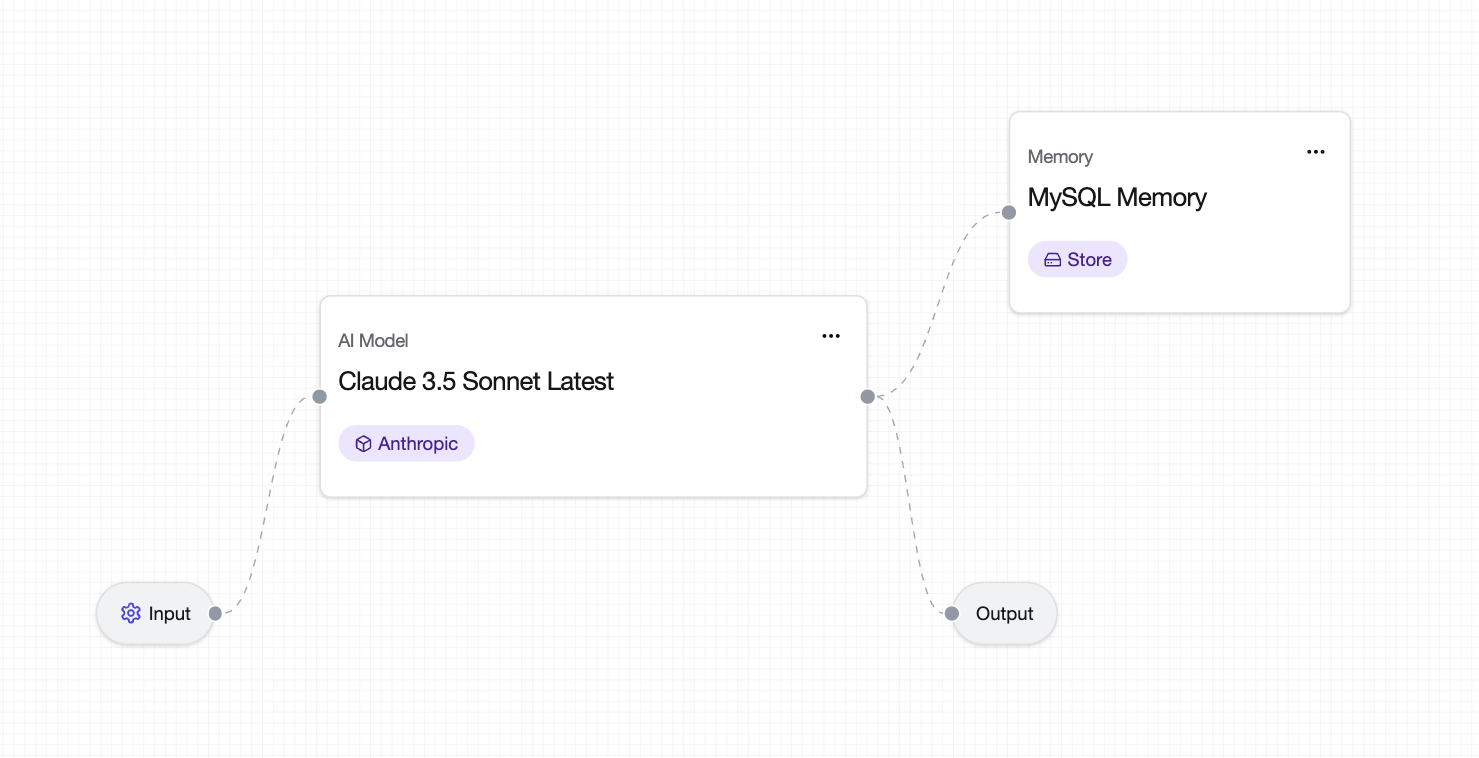
### Agent Pattern (MySQL, PostgreSQL, MS SQL, Snowflake, MongoDB)
Most database tools use a **two-agent architecture**:
1. **Metadata Retrieval Agent** - Scheduled agent that extracts database schema
2. **Query Agent** - Interactive agent that answers user questions
**Required Components:**
* Database-specific SQL Query Tool
* Database-specific Metadata Retrieval Tool
* Memory object (for metadata storage)
* LLM model
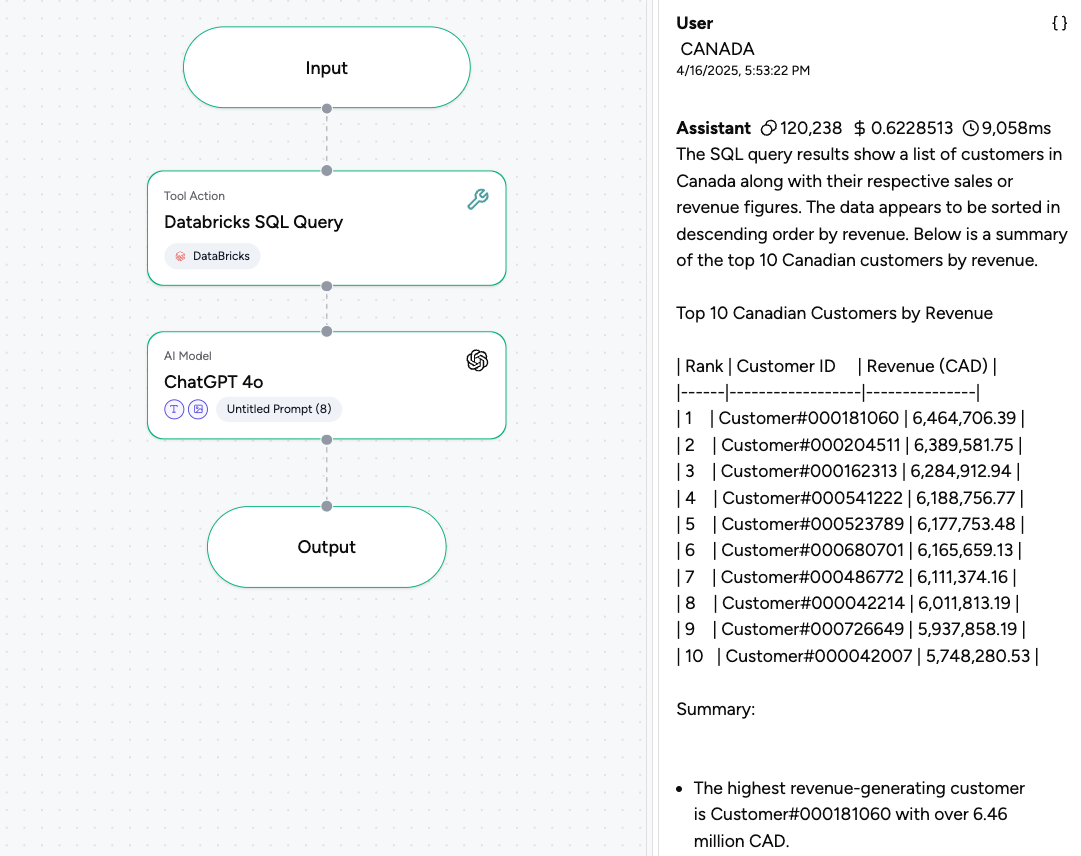
 ### Simplified Pattern (Databricks)
Databricks uses a **single-agent**:
1. **Query Agent** - Direct SQL query execution with LLM processing
**Required Components:**
* Databricks SQL Query Tool
* LLM model
## Setting Up Standard Database Agents
### Step 1: Create Metadata Retrieval Agent
1. Create a new agent in **Agent Canvas**
2. Add the following components:
* **LLM model**
* **\[Database] Metadata Retrieval Tool** (e.g., "MySQL Metadata Retrieval Tool")
* **Memory object**
3. Configure connections:
* **Input** → **LLM**
* **LLM** → **Output**
* **Memory** → **Output**
4. Add the Metadata Retrieval Tool to the LLM
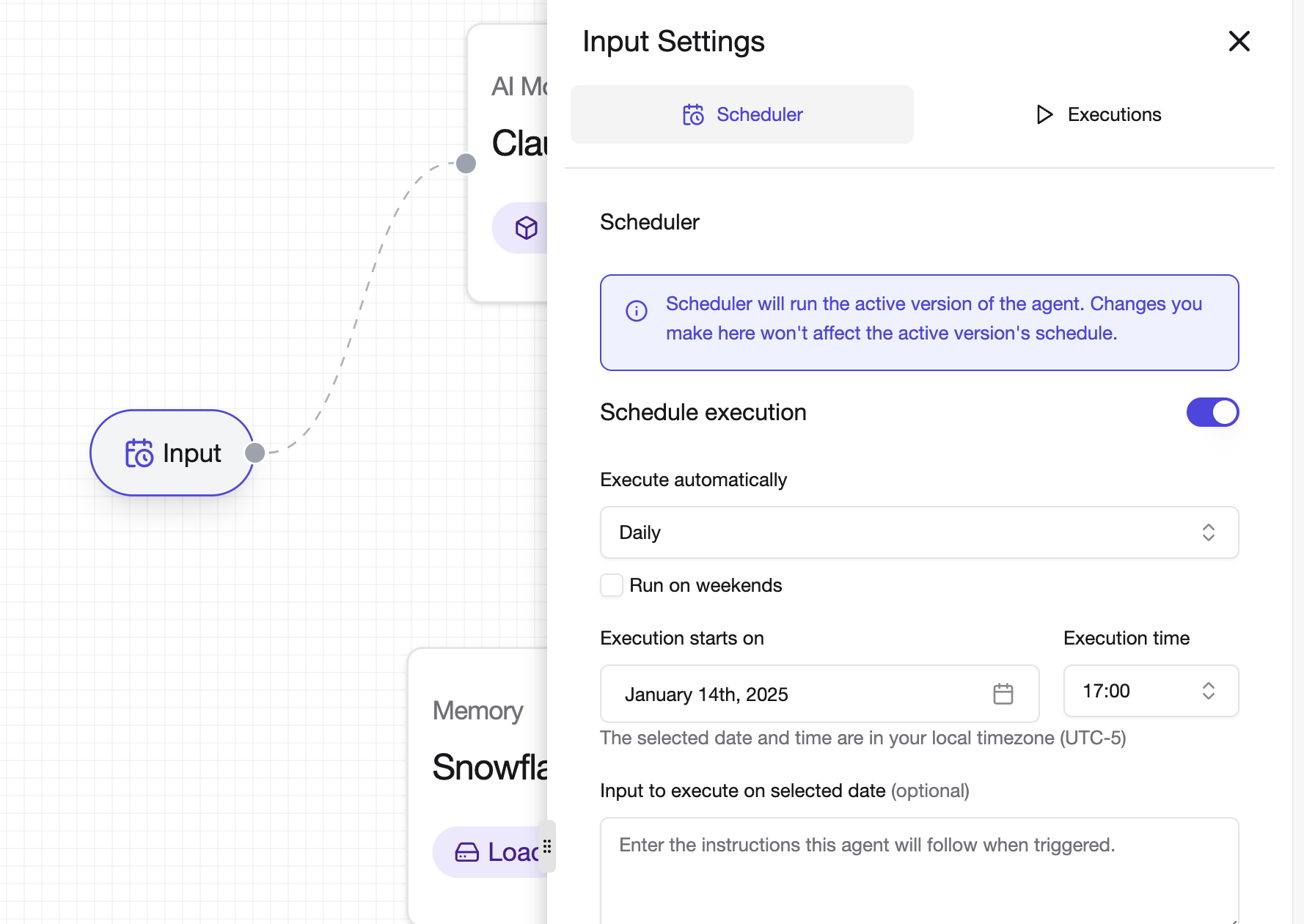
5. **Schedule the agent:**
* Click the **gear icon** on the Input block
* Toggle **Schedule Execution** ON
* Set repeat interval based on how often your database schema changes
> 💡 **Scheduling Tip:** Run metadata retrieval daily for frequently changing databases, or weekly for stable schemas.
### Simplified Pattern (Databricks)
Databricks uses a **single-agent**:
1. **Query Agent** - Direct SQL query execution with LLM processing
**Required Components:**
* Databricks SQL Query Tool
* LLM model
## Setting Up Standard Database Agents
### Step 1: Create Metadata Retrieval Agent
1. Create a new agent in **Agent Canvas**
2. Add the following components:
* **LLM model**
* **\[Database] Metadata Retrieval Tool** (e.g., "MySQL Metadata Retrieval Tool")
* **Memory object**
3. Configure connections:
* **Input** → **LLM**
* **LLM** → **Output**
* **Memory** → **Output**
4. Add the Metadata Retrieval Tool to the LLM
5. **Schedule the agent:**
* Click the **gear icon** on the Input block
* Toggle **Schedule Execution** ON
* Set repeat interval based on how often your database schema changes
> 💡 **Scheduling Tip:** Run metadata retrieval daily for frequently changing databases, or weekly for stable schemas.
 ### Step 2: Create Query Agent
1. Create a new agent in **Agent Canvas**
2. Add the following components:
* **LLM model**
* **\[Database] SQL Query Tool** (e.g., "MySQL SQL Query Tool")
* **Memory object** (same as metadata agent)
**For MongoDB:** Add both **MongoDB Find Tool** and **MongoDB Aggregate Tool**
3. Configure connections:
* **Input** → **LLM**
* **LLM** → **Output**
* **Memory** → **LLM**
### Step 2: Create Query Agent
1. Create a new agent in **Agent Canvas**
2. Add the following components:
* **LLM model**
* **\[Database] SQL Query Tool** (e.g., "MySQL SQL Query Tool")
* **Memory object** (same as metadata agent)
**For MongoDB:** Add both **MongoDB Find Tool** and **MongoDB Aggregate Tool**
3. Configure connections:
* **Input** → **LLM**
* **LLM** → **Output**
* **Memory** → **LLM**
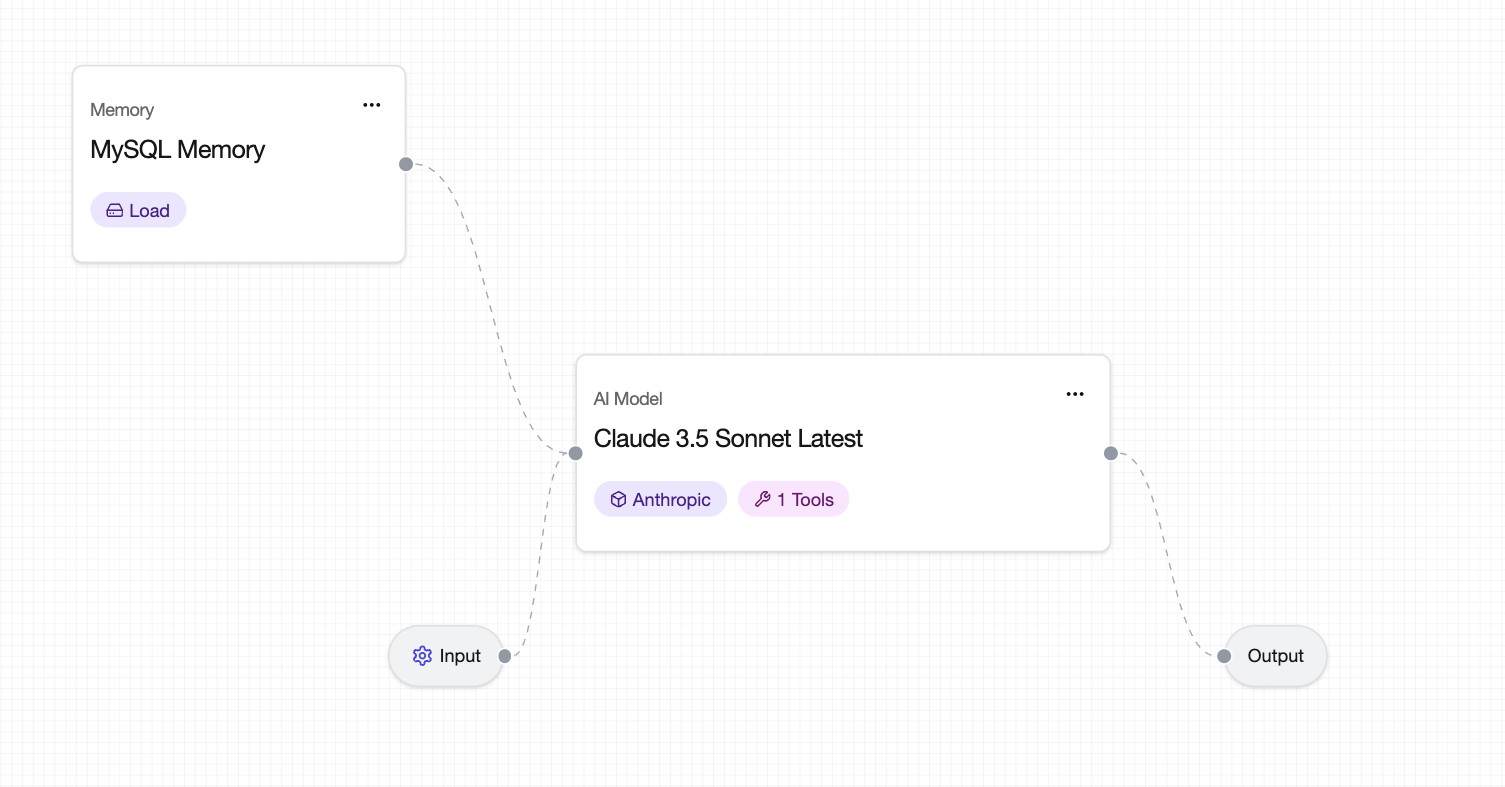 4. Add the SQL Query Tool(s) to the LLM
> ⚠️ **Important:** Run the Metadata Retrieval Agent at least once before using the Query Agent to populate database schema information.
## Setting Up Databricks Agents
### Single Query Agent Setup
1. Create a new agent in **Agent Canvas**
2. Add the following components:
* **Databricks SQL Query Tool**
* **LLM model**
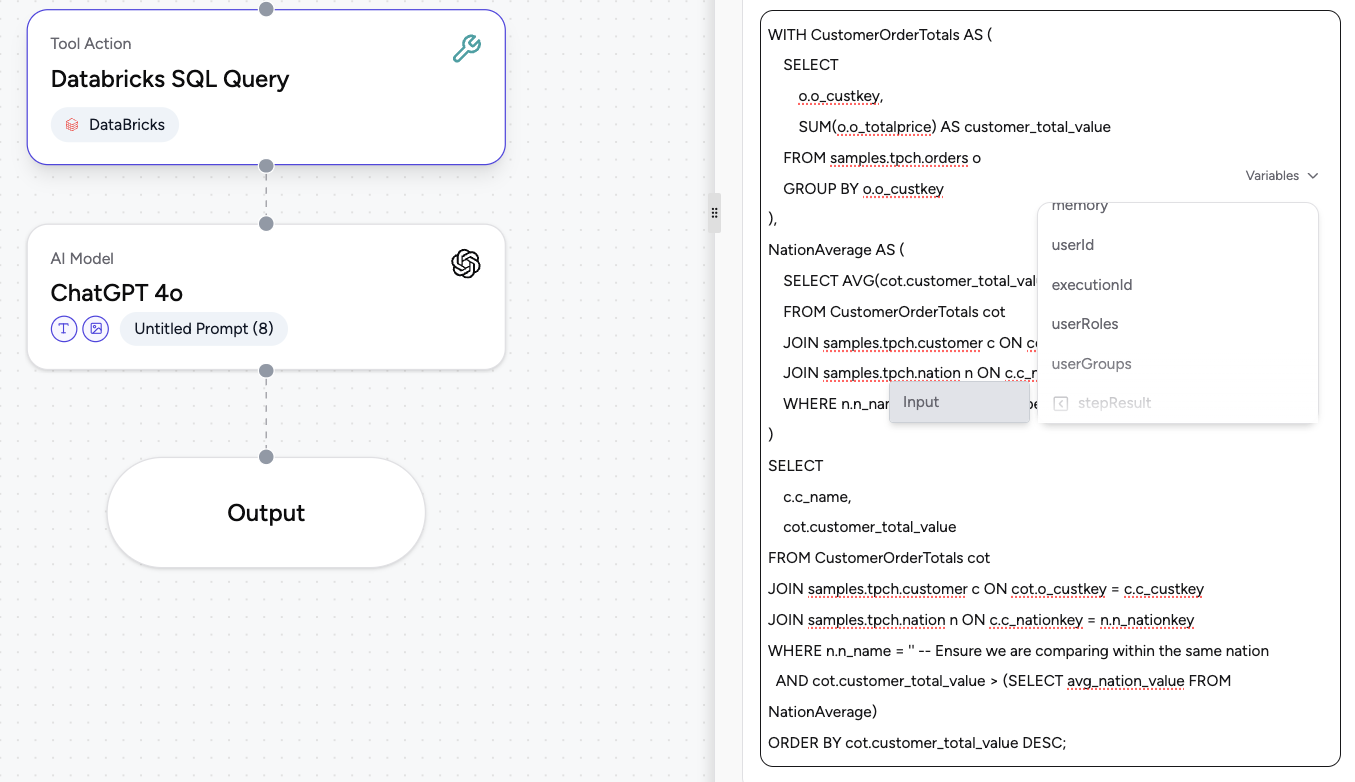
3. Configure connections:
* **Input** → **Databricks SQL Query Tool**
* **Tool** → **LLM**
* **LLM** → **Output**
4. Configure the SQL Query Tool:
* Click on the **Databricks SQL Query Tool**
* Set it to receive value from **Input Step Result**
### Using Parameterized Queries
For dynamic queries, use **Agent Variables** in your SQL statements:
1. Click on the **\[Database] SQL Query Tool** (e.g. Databricks SQL Query Tool)
2. Enter your SQL query with variables: `SELECT * FROM {{table_name}} WHERE date > '{{start_date}}'`
3. Save the configuration
Variables will appear as blue tags and can be set dynamically at runtime.
4. Add the SQL Query Tool(s) to the LLM
> ⚠️ **Important:** Run the Metadata Retrieval Agent at least once before using the Query Agent to populate database schema information.
## Setting Up Databricks Agents
### Single Query Agent Setup
1. Create a new agent in **Agent Canvas**
2. Add the following components:
* **Databricks SQL Query Tool**
* **LLM model**
3. Configure connections:
* **Input** → **Databricks SQL Query Tool**
* **Tool** → **LLM**
* **LLM** → **Output**
4. Configure the SQL Query Tool:
* Click on the **Databricks SQL Query Tool**
* Set it to receive value from **Input Step Result**
### Using Parameterized Queries
For dynamic queries, use **Agent Variables** in your SQL statements:
1. Click on the **\[Database] SQL Query Tool** (e.g. Databricks SQL Query Tool)
2. Enter your SQL query with variables: `SELECT * FROM {{table_name}} WHERE date > '{{start_date}}'`
3. Save the configuration
Variables will appear as blue tags and can be set dynamically at runtime.
 ## Using Your Database Agents
### Query Examples
Ask your agents natural language questions about your data:
```
"Show me all customers from the last month"
"What are the top 10 products by sales?"
"Find all orders with status 'pending'"
"Summarize revenue by region for Q4"
```
### MongoDB-Specific Queries
```
"Find all documents in the users collection where age > 25"
"Aggregate sales data by product category"
"Show me the most recent orders from each customer"
```
### Direct SQL Queries
For SQL Tools, you can pass SQL queries directly:
```sql theme={null}
SELECT customer_id, SUM(order_value)
FROM orders
WHERE order_date >= '2024-01-01'
GROUP BY customer_id
```
## Using Your Database Agents
### Query Examples
Ask your agents natural language questions about your data:
```
"Show me all customers from the last month"
"What are the top 10 products by sales?"
"Find all orders with status 'pending'"
"Summarize revenue by region for Q4"
```
### MongoDB-Specific Queries
```
"Find all documents in the users collection where age > 25"
"Aggregate sales data by product category"
"Show me the most recent orders from each customer"
```
### Direct SQL Queries
For SQL Tools, you can pass SQL queries directly:
```sql theme={null}
SELECT customer_id, SUM(order_value)
FROM orders
WHERE order_date >= '2024-01-01'
GROUP BY customer_id
```
 ## Best Practices
> 💡 **Tip:** Add custom prompts to your LLM with:
>
> * Database schema context
> * Common query patterns for your domain
> * Output formatting preferences
> * Business logic explanations
> 💡 **Memory Management:** Use the same Memory object across both agents to ensure consistent metadata access.
> ⚠️ **Connection Requirements:** All database servers must be accessible via public IP. Contact [support@airia.com](mailto:support@airia.com) for IP whitelisting assistance.
## Best Practices
> 💡 **Tip:** Add custom prompts to your LLM with:
>
> * Database schema context
> * Common query patterns for your domain
> * Output formatting preferences
> * Business logic explanations
> 💡 **Memory Management:** Use the same Memory object across both agents to ensure consistent metadata access.
> ⚠️ **Connection Requirements:** All database servers must be accessible via public IP. Contact [support@airia.com](mailto:support@airia.com) for IP whitelisting assistance.