

Set Up AWS Bedrock IAM Access
This guide walks you through configuring AWS IAM roles and permissions to enable Airia to access Amazon Bedrock models in your AWS account. You can choose between two authentication methods: IAM Role ARN (recommended for production environments) or Access Key (simpler setup for testing and development).Prerequisites
Before you begin, ensure you have:- AWS Account access with administrative privileges to create IAM roles and policies
- Bedrock models enabled in your AWS account and region
Choose Your Authentication Method
Option 1: IAM Role ARN (Recommended for Production)
Use this method if you want to provide Airia with IAM user credentials that can assume a specific role. This provides better security through role-based access control. Best for:- Production environments
- Organizations that want to tightly scope permissions
- Scenarios requiring role-based access control
Option 2: Access Key (Simpler Setup)
Use this method for a straightforward setup using direct AWS access keys. This is simpler to configure but requires managing access keys directly. Best for:- Quick setup and testing
- Development environments
- Scenarios where role assumption is not required
Option 1: IAM Role ARN Setup
Step 1: Create an IAM Policy for Bedrock Access
- Log in to the AWS Console and navigate to IAM.
- In the left sidebar, go to Policies → Create policy.
- Select the JSON tab and paste the following policy:
- Click Next.
- Name the policy
AiriaBedrockAccessPolicy(or your preferred name). - Add an optional description, then click Create policy.
This policy grants permission to invoke Bedrock models using both direct foundation model access and inference profiles. The wildcard (
*) allows access to all models in all regions. You can restrict this to specific models or regions if needed.Step 2: Create the Execution Role
This role will have the permissions to call Bedrock models.- In IAM, go to Roles → Create role.
- Under Trusted entity type, select AWS account.
- Select This account (since the IAM user you’ll create next will be in the same account).
- Click Next.
- On the Add permissions page, search for and select the
AiriaBedrockAccessPolicyyou created in Step 1. - Click Next.
- Name the role
AiriaBedrockExecutionRole(or your preferred name). - Add an optional description.
- Click Create role.
- Important: Copy the Role ARN (it will look like
arn:aws:iam::123456789012:role/AiriaBedrockExecutionRole). You’ll need this in Step 5.
Step 3: Create an IAM User for Airia
This user will be used by Airia to assume the role you just created.- In IAM, go to Users → Create user.
- Enter the username
AiriaBedrockUser(or your preferred name). - Click Next.
- Under Set permissions, select Attach policies directly.
- Click Create policy (this opens a new tab/window).
- In the policy creation window:
- Select the JSON tab
- Paste the following JSON, replacing
YOUR_ROLE_ARNwith the Role ARN you copied in Step 2:
- Click Next, name the policy
AiriaAssumeRolePolicy, and click Create policy. - Return to the user creation tab, refresh the policies list, and select
AiriaAssumeRolePolicy. - Click Next, review your selections, and click Create user.
Step 4: Generate Access Keys
- Click on the
AiriaBedrockUseryou just created. - Go to the Security credentials tab.
- Scroll to Access keys and click Create access key.
- Select Application running outside AWS (or Other).
- Click Next, add an optional description tag, and click Create access key.
- Important: Copy both the Access Key ID and Secret Access Key. You won’t be able to see the secret key again after closing this dialog.
Step 5: Configure Airia with Role ARN
Now you’ll enter these credentials into the Airia platform:- Log in to your Airia platform.
- Navigate to Models → filter by Provider Bedrock → select a Bedrock Model (such as Claude Sonnet 4.5)
- Click on the model to edit it, or click Provide my own key if creating a new credential
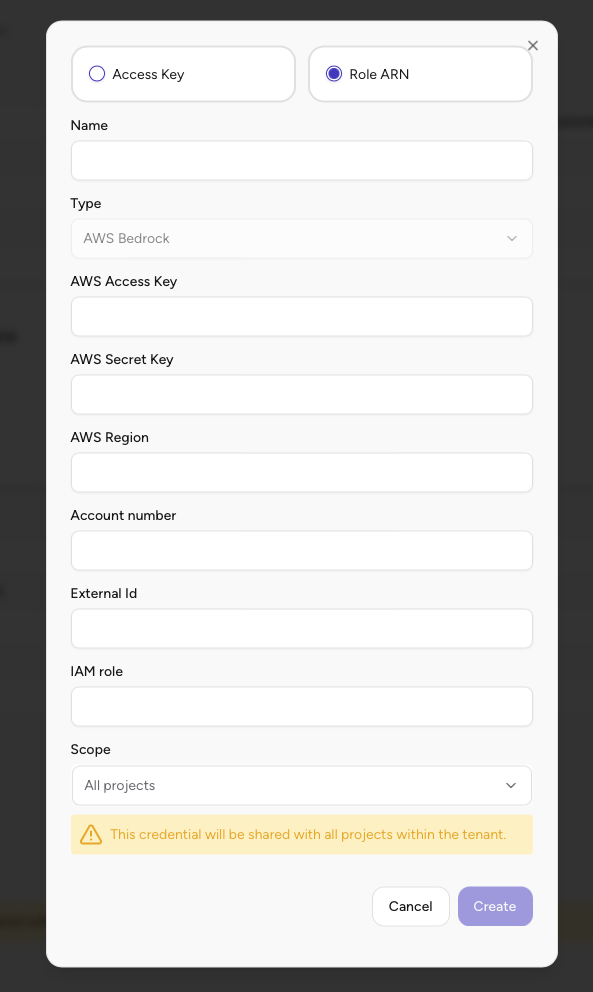
- In the credential configuration dialog, select Role ARN as the authentication method
- Configure the following fields:
- Name: Enter a descriptive name for this credential (e.g., “Bedrock Production ARN”)
- Type: Should be set to “AWS Bedrock”
- AWS Access Key: Enter the Access Key ID from Step 4
- AWS Secret Key: Enter the Secret Access Key from Step 4
- AWS Region: Enter the region where your Bedrock models are enabled (e.g.,
us-east-1,us-east-2,us-west-2) - Account number: Enter your AWS Account number (found in the top-right corner of your AWS Console)
- IAM Role: Enter the role name from Step 2 (just the role name, not the full ARN - e.g.,
AiriaBedrockExecutionRole) - External ID: (Optional) Leave blank unless you configured an External ID condition in the role’s trust policy
- Scope: Select whether this credential should be available to all projects or specific projects
- Click Create to save the configuration.
Option 2: Access Key Setup
This method uses direct AWS access keys without role assumption. It’s simpler to set up but requires the access keys to have direct Bedrock permissions.Step 1: Create an IAM Policy for Bedrock Access
Follow Option 1, Step 1 to create theAiriaBedrockAccessPolicy. The same IAM policy is used for both authentication methods.
Step 2: Create an IAM User for Airia
Follow Option 1, Step 3 to create an IAM user, but with this difference:- Instead of creating a policy that allows assuming a role, attach the
AiriaBedrockAccessPolicydirectly to the user - When setting permissions, search for and select the
AiriaBedrockAccessPolicyyou created in Step 1 - You do not need to create the
AiriaAssumeRolePolicyor configure role assumption
Step 3: Generate Access Keys
Follow Option 1, Step 4 to generate access keys for the IAM user you just created.Step 4: Configure Airia with Access Key
Now you’ll enter these credentials into the Airia platform:- Log in to your Airia platform.
- Navigate to Models → filter by Provider Bedrock → select a Bedrock Model (such as Claude Sonnet 4.5)
- Click on the model to edit it, or click Provide my own key if creating a new credential
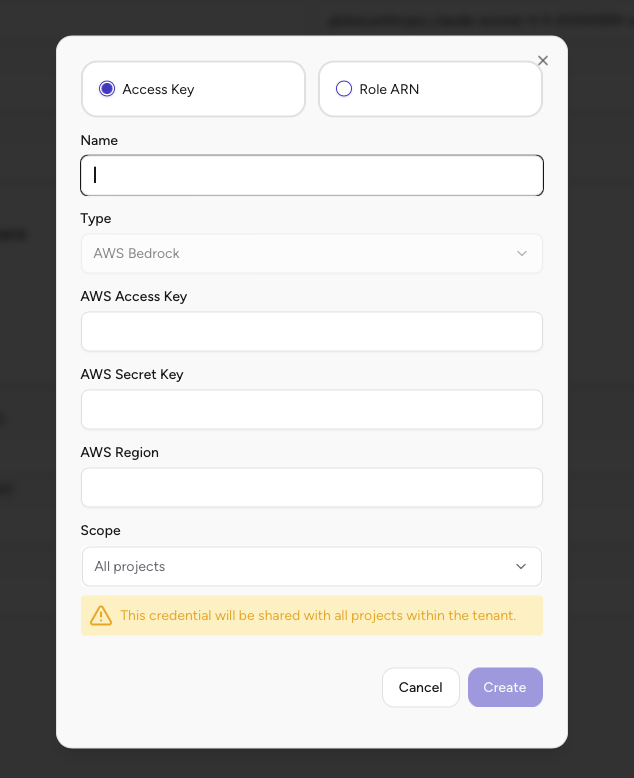
- In the credential configuration dialog, select Access Key as the authentication method
- Configure the following fields:
- Name: Enter a descriptive name for this credential (e.g., “Bedrock Development Access Key”)
- Type: Should be set to “AWS Bedrock”
- AWS Access Key: Enter the Access Key ID from Step 3
- AWS Secret Key: Enter the Secret Access Key from Step 3
- AWS Region: Enter the region where your Bedrock models are enabled (e.g.,
us-east-1,us-east-2,us-west-2) - Scope: Select whether this credential should be available to all projects or specific projects
- Click Create to save the configuration.
Configure the Bedrock Model in Airia
After setting up your credentials (using either Option 1 or Option 2), you need to configure the Bedrock model to use them:- In Airia, navigate to Models → filter by Provider Bedrock
- Select the Bedrock model you want to configure (e.g., “Claude Sonnet 4.5 ARN”)
- Click to edit the model configuration
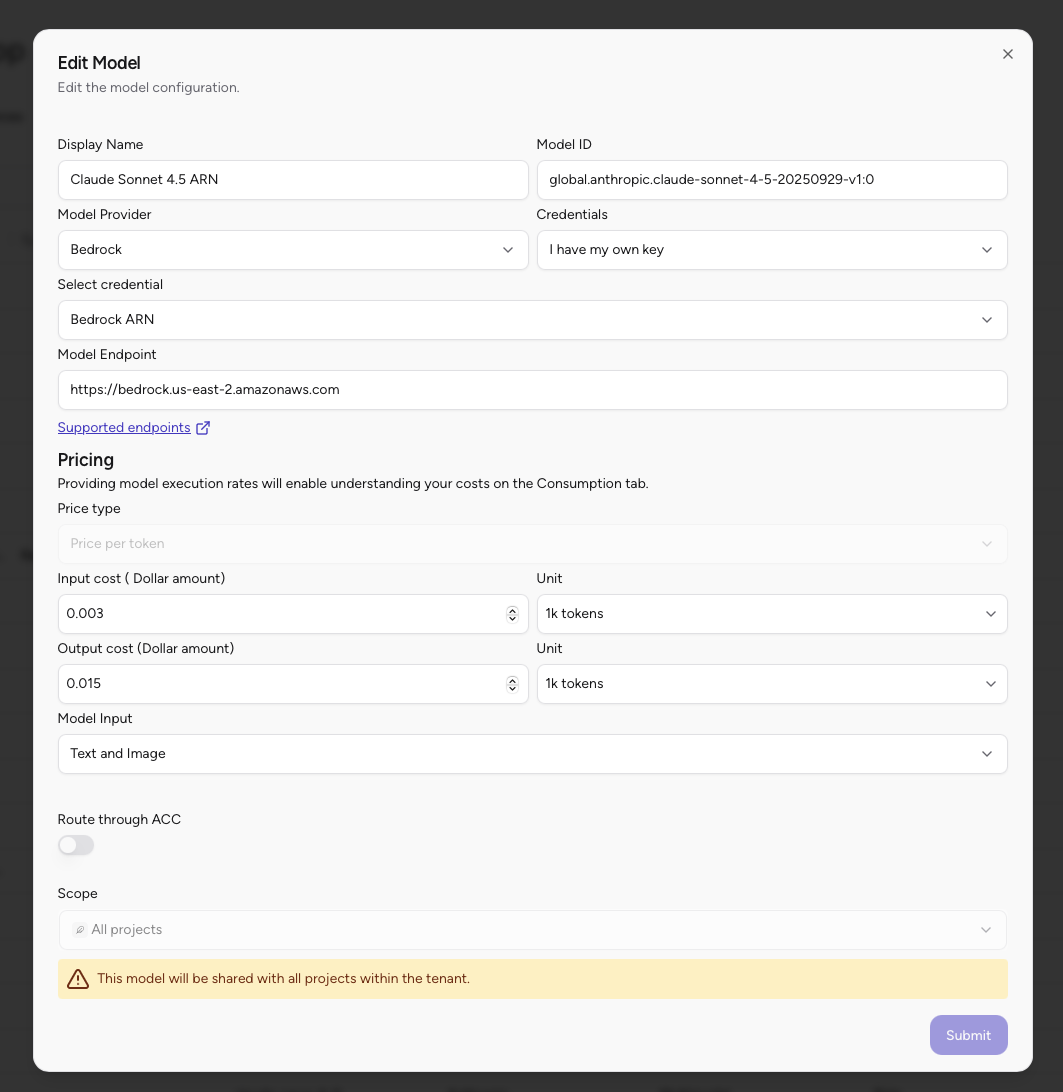
- In the Edit Model dialog:
- Display Name: Verify or update the model display name
- Model ID: Verify the model ID (e.g.,
global.anthropic.claude-sonnet-4-5-20250929-v1:0) - Model Provider: Should be set to “Bedrock”
- Credentials: Select “I have my own key”
- Select credential: Choose the credential you created in the previous step (e.g., “Bedrock ARN” or “Bedrock Development Access Key”)
- Model Endpoint: Verify the endpoint URL (e.g.,
https://bedrock.us-east-2.amazonaws.com) - Configure pricing, model input, and other settings as needed
- Click Submit to save the model configuration
Verification
After completing the setup, verify that everything is working:- In Airia, test the Bedrock connection by adding a Model to your project
- Create a test agent or workflow that uses a Bedrock model
- Run a test query to confirm the model responds correctly.
If you encounter permission errors, double-check that:
- The IAM policy includes both
foundation-model/*andinference-profile/*resources - The role ARN is correct and matches the role you created
- The AWS region matches where your Bedrock models are enabled
- The Bedrock models you’re trying to use are enabled in your AWS account
Troubleshooting
Common Issues
Error: “User is not authorized to perform: bedrock:InvokeModel”- Verify the IAM policy is attached to the execution role
- Ensure the policy includes both
bedrock:InvokeModelandbedrock:InvokeModelWithResponseStreamactions - Check that the resource ARNs include both
foundation-model/*andinference-profile/*
- Verify the IAM user has permission to assume the role (check
AiriaAssumeRolePolicy) - Ensure the IAM role name and account number are correct
- Verify the role’s trust policy allows the IAM user to assume it
- Confirm the Bedrock model is enabled in your AWS account and region
- For Anthropic Claude models, check if you need to complete the use case form in Bedrock Console
- Verify you’re using the correct region in your Airia configuration
Next Steps
After successfully configuring AWS Bedrock access:- Add Bedrock models to your agents
- Configure agent prompts to use Bedrock models
- Test your agents to ensure proper model integration
Additional Resources
Need help? Contact Airia support or your AWS administrator for assistance with IAM configuration.